First: understand what causes the delay. As stated by Electronic Arts themselves, the "delay" in FC 26 is the latency between the moment you press a button or move the stick and the effect appearing on the screen. This can stem from various factors such as internet connection quality, distance to the server, local hardware, and even how your TV or monitor is configured. So, to reduce this delay, you need to address it at the network level, device level, and viewing level.
Use Wired Internet (Ethernet) — Avoid Wi-Fi
Of all the changes, this is the one that brings the most immediate impact. Wi-Fi networks are more susceptible to interference, packet loss, and signal variations (“jitter”), all of which directly cause delay.
Connecting your console/PC to the router using an Ethernet cable eliminates many of these unstable variables. In a report from EA, these exact causes were discovered: “If you play over Wi-Fi, you may experience jitter and packet loss, which create a delayed experience.”
Therefore: switch from Wi-Fi to cable whenever possible. If you cannot use a cable directly, at least try to position the router very close, use a 5 GHz band, and turn off other devices that are consuming a lot of the network during your match.
Disable Crossplay
Although not always explicitly mentioned by EA, in competitive online games, crossplay (playing against someone on another platform or in another geographic region) can increase average latency because peers may end up on less favourable servers or network routes. If you are experiencing recurring delays, consider disabling crossplay and restricting your matchmaking to players on the same platform or region. This reduces the chance of long-distance connections or additional delays.
With this measure, you decrease the risk of facing opponents with unfavourable location or network routes, which helps maintain lower ping and response times.
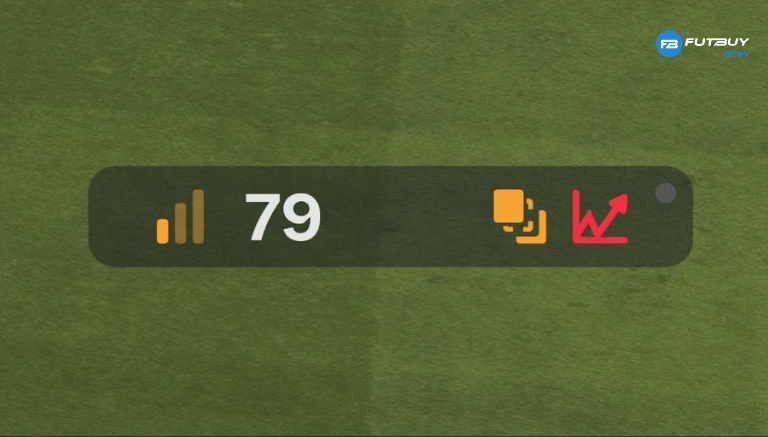
Check and Reduce Ping and Packet Loss
Among the official tips and independent guides: check your latency (“ping”) to the servers and observe if there is packet loss or high jitter.
Ideally, keep the ping below ~30-40 ms. Above 50-60 ms, there starts to be visible impact.
On the router, enable UPnP or port forwarding (for example TCP: 3659 and UDP: 10000-20000) for the game.
If possible, enable QoS (Quality of Service) on the router to prioritise traffic from your console/PC.
Hardware and Display Adjustments
Even with an excellent network connection, your local equipment can introduce additional delays:
Use the Game/Console/PC mode on your monitor or TV to minimise input/display lag. EA highlighted that televisions not in game mode can add from 20 to over 100 ms of delay.
If on PC, check for any fps drops, or that the GPU/CPU is not overloaded, as this can also create a “slow game” feeling.
Use quality HDMI cables, ports that support features like VRR or ALLM (if applicable), to reduce delay between the console/PC and the screen.
Avoid Playing During Peak Hours
If your connection or network route is saturated (for example, many devices streaming, downloading, or uploading in the background), latency and instability increase.
Try to play during less busy times, or ensure that no other device on the network is consuming bandwidth or generating heavy traffic while you are in a match. Close download or automatic backup apps before entering competitive games.
Check Region/server and Your Proximity to the Server
Even with a stable connection, if you are physically far away or have an unfavourable network route to the game server, the ping increases. EA confirmed that distance alone does not guarantee good ping; the routing from the provider matters a lot.
If possible, select servers close to your location or use tools (when supported) that indicate the quality of the route. As a last resort, if severe delays persist, you might even temporarily switch providers or plans to test if the route improves.